How to Create a League, Step by Step
This guide walks you through the full organiser journey for setting up a WSNLF Premier League Predictions competition, from choosing your league code and ordering your competition through to promoting it, collecting entries, and sharing the live viewer page with your players.
Before you start
Each new league purchase includes a base setup with 50 entrants. Once your order is completed, your competition is automatically created and you will receive your organiser login details, admin portal link, viewer link, and the resources you need to begin promoting your league.
League code guidance
Your league code helps players and organisers find the correct competition quickly. The best league codes are short, memorable, and easy to type.
Recommended format: a short club, pub, workplace, or organiser reference, followed by the season year in short form.
BHTFC2627
DOGDUCK2627
WSNLF2627
OFFICE2627
PUBPL2627
Using a short code plus 2627 for the 2026-27 season makes it easier to recognise the league and helps avoid clashes with future seasons.
Step-by-step organiser flow
-
Choose your competition name and league code
Decide what your league will be called and choose a short memorable code. Keep the code simple, ideally all caps and without spaces.
-
Order your league
Purchase your league using the WSNLF registration product. During the order process, enter your organiser details, competition name, and chosen league code.
-
Receive your organiser setup details
After successful payment, your competition is automatically created. You will receive:
- your organiser admin portal link
- your public viewer link
- your organiser login email
- your generated starting password
-
Log into the organiser portal
Use the admin link and login details from your confirmation to access the organiser portal. This is where you manage your league, entrants, settings, downloads, and competition admin users.
The portal also includes user management so you can add additional admin users if needed, as well as password change features. It is recommended that you change the auto-generated starting password after first login, because it is not personal and is less secure than a password you choose yourself.
-
Download your league materials
Before collecting entries, download the resources you need to promote the league and prepare player entry data.
-
Promote your league
Share your promotional posters, your viewer link, and your QR/player entry route with players. This is the easiest way to encourage people to join and follow the competition.
-
Collect entrants
You can collect entries in different ways depending on what suits your group:
- CSV upload for bulk entries
- QR entry for player self-submission
- manual collection first, then later upload/import
-
Use the CSV creator if you want to enter players one by one
The organiser portal includes a CSV creator tool that works in a similar style to the player QR entry system, but for admins adding multiple players. This allows you to:
Open the Prediction CSV Creator
- enter player details one at a time
- assign each player’s prediction order in a guided format
- add multiple players into one working list
- review the full set before export
- press a Create CSV button to generate a downloadable CSV file
That downloadable CSV can then be used directly in the import feature, making it easier for organisers who do not want to build spreadsheets manually.
-
Upload or review entries
Use the organiser portal to upload your CSV file, generate one through the CSV creator, or review entrant submissions. The system will validate the data and help you catch any issues before import.
-
Share the viewer page
Once your league is ready, share the public viewer page so players can follow the standings, entrant predictions, and season progress.
How the player QR entry flow works
This flow should be clearly understood by organisers so they can explain it properly to players before entries are submitted.
- Player scans the QR code shown on the poster or organiser material.
- Player enters the league code.
- Player clicks the QR Entry button.
- Player enters their details in the areas provided.
- Player selects the teams in the order they predict they will finish.
- Player clicks Generate QR Code.
- The generated QR code is then provided to the organiser of the league.
- The organiser scans that QR code and is taken to the organiser login page.
- The organiser logs in and confirms the entry after collecting payment for the competition entry.
This gives the organiser a practical way to collect, review, and confirm player entries before they are treated as accepted.
Promotional and organiser downloads
Blank entrants CSV template
Use this file for bulk entrant uploads in the correct WSNLF format.
Light promotional poster
Use this version for printing, sharing online, or promoting your league in brighter layouts.
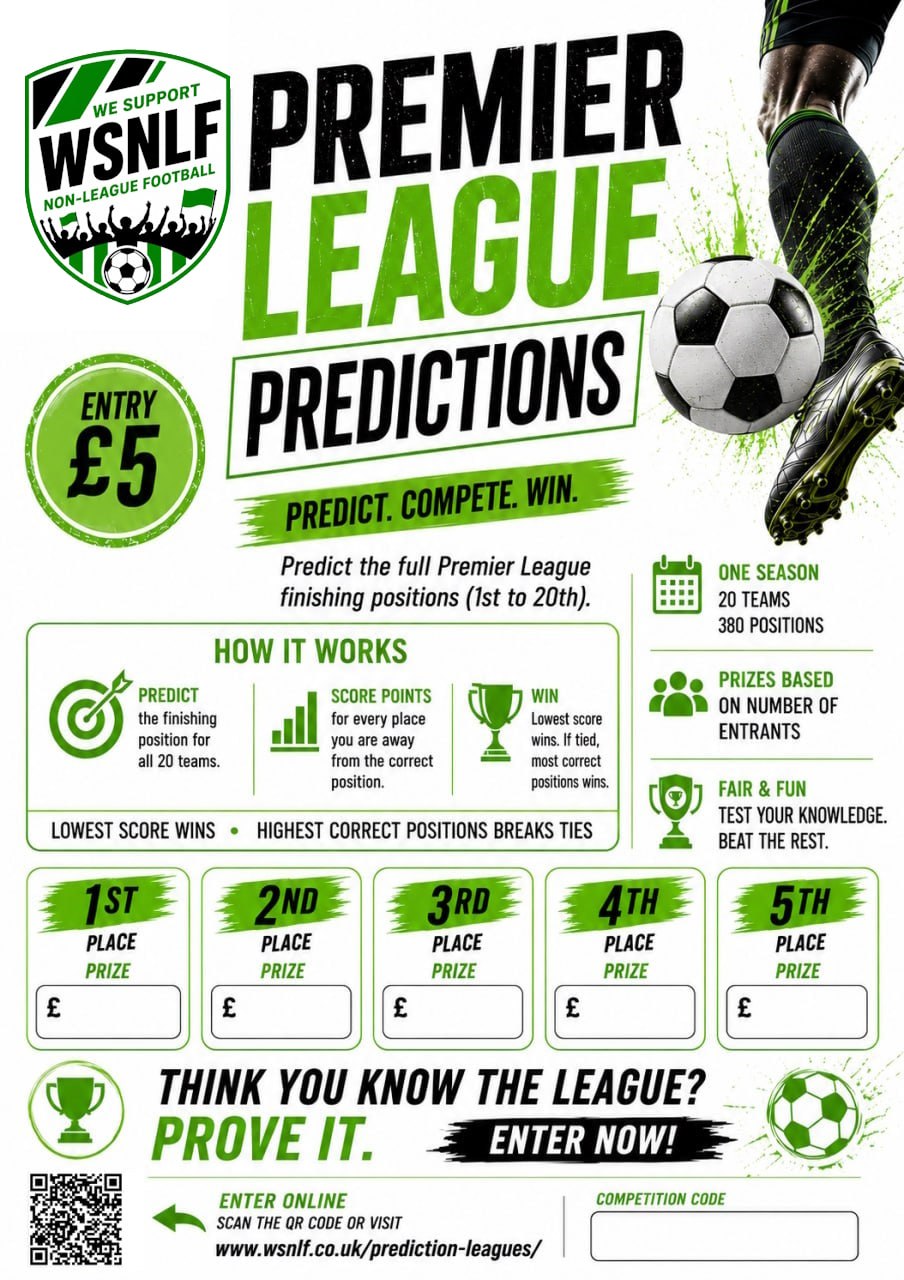
Dark promotional poster
Use this version where a darker branded visual style works better for your audience.

Simple organiser advice
- Keep your league code short and easy to remember.
- Use the season suffix, such as 2627, to keep your competition distinct from future years.
- Share your viewer link and QR route early so players know where to go.
- Use the CSV template if you are collecting a lot of entries together.
- Check your entrant list inside the portal before the season starts.